How to test DIGI service with Postman
Step 1 - Login
Login or register your account at digi.costpocket.com.
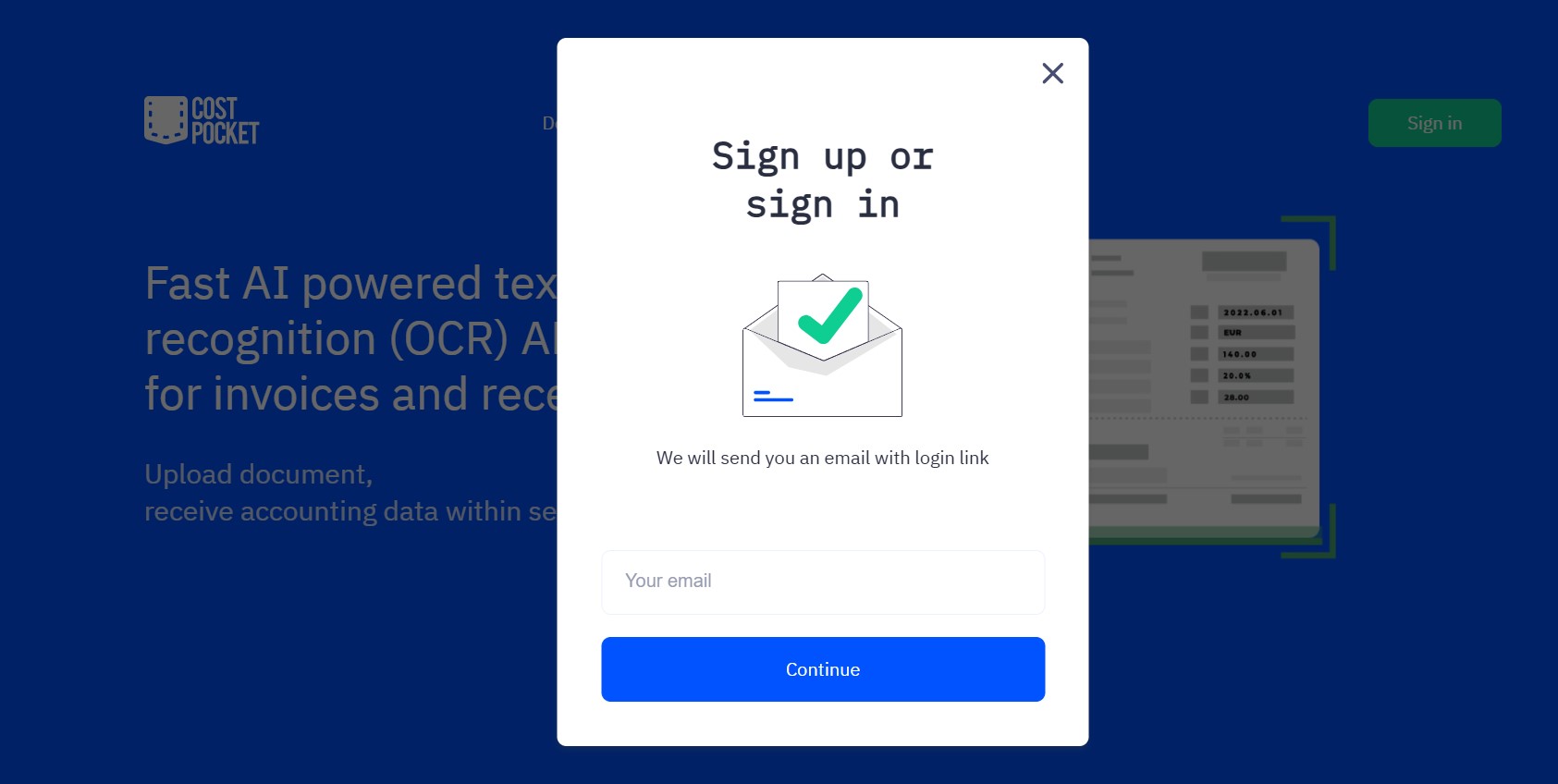
You will receive a one-time usable code to your email, enter this code and you will be directed to the DIGI Portal.
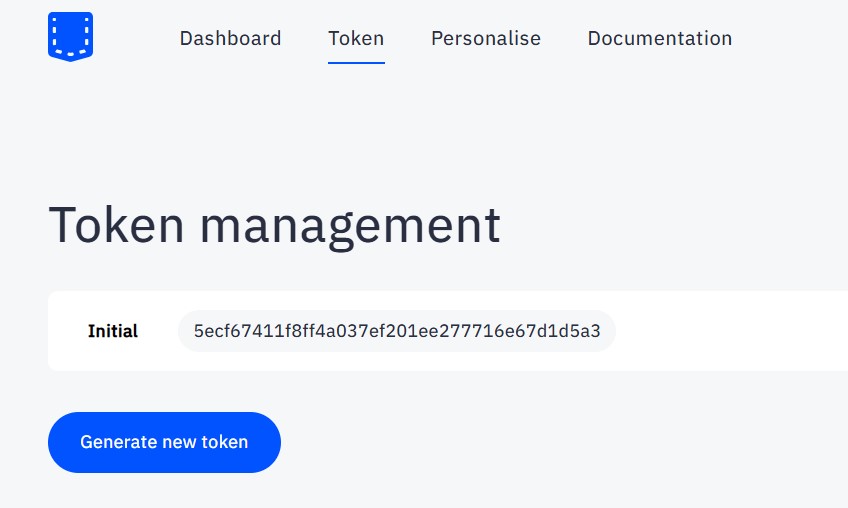
Step 2 - Token
In the DIGI Portal, find your first token. Copy this token, we will need it.
Step 3 - Postman
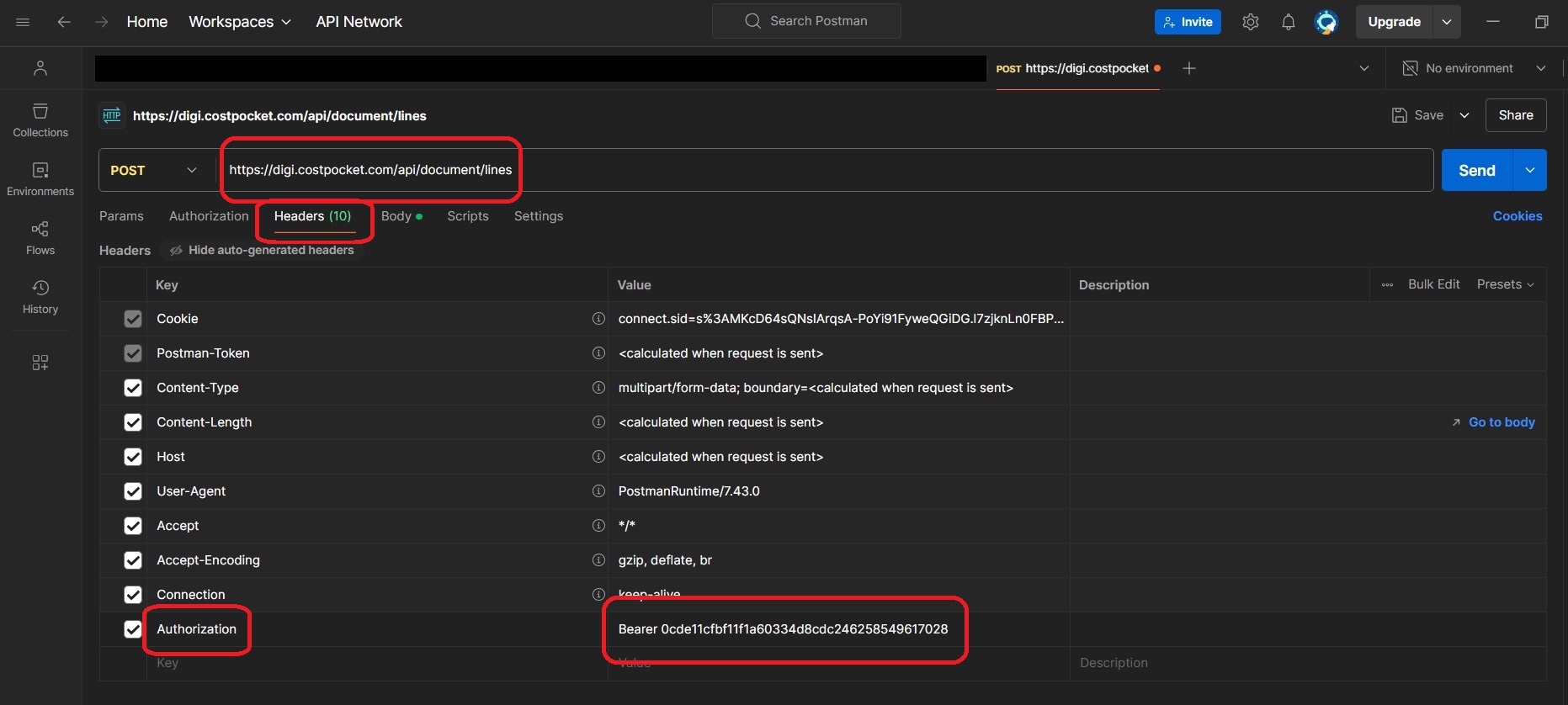
Go to Postman, create a new request and enter the needed parameters:
API URL endpoint from our documentation.
In headers, enter key "Authorization" and value in format "Bearer your-token-here".
API URL endpoint from our documentation.
In headers, enter key "Authorization" and value in format "Bearer your-token-here".
Step 4 - Image
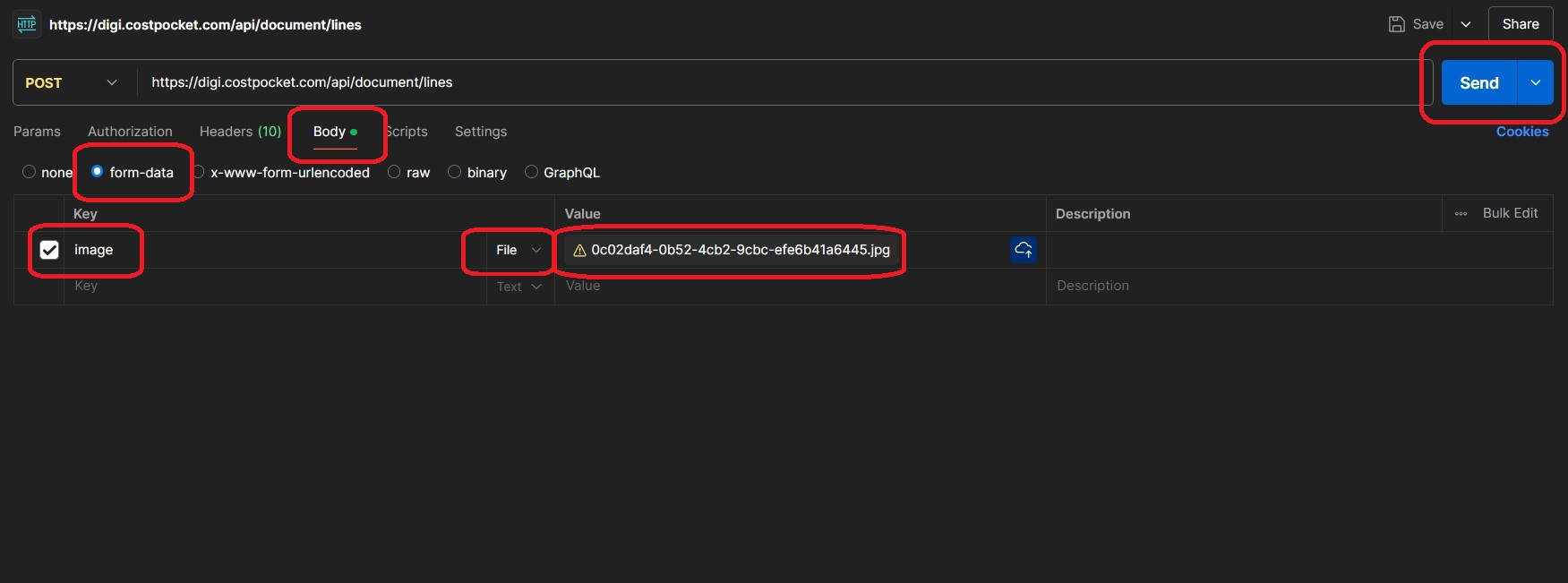
Go to "Body".
Choose "form-data" as payload type.
Choose "file" as input type.
Enter key "image".
Upload your image as value.
Click "Send". Wait a few seconds and see your result!
Choose "form-data" as payload type.
Choose "file" as input type.
Enter key "image".
Upload your image as value.
Click "Send". Wait a few seconds and see your result!
All done!
After this, make more requests, test the service in some other environment or integrate into your code (see more tutorials below)!
Swagger tutorial
JavaScript tutorial
Swagger tutorial
JavaScript tutorial